About UTM Parameter Tracking for Reservations
Unlocking the Power of UTM Parameter Tracking for Advertisement Campaigns
In today’s digital marketing landscape, understanding the journey of a customer from seeing an advertisement to making a booking is crucial for optimizing your campaigns. One powerful tool that can provide this insight is UTM (Urchin Tracking Module) parameters. These tiny snippets of code, added to the end of a URL, can help you track where people are seeing your advertisements and how they are interacting with them before booking a reservation.
What Are UTM Parameters?
UTM parameters are tags added to URLs that help track the effectiveness of online marketing campaigns. When a user clicks on a link with UTM parameters, these tags are sent back to your analytics platform (like Google Analytics) and provide detailed information about the source, medium, and campaign that drove the traffic. This data is invaluable for understanding the performance of different advertising channels and strategies.
How UTM Parameters Work
Consider you’re running a promotional campaign across multiple platforms—Facebook, Instagram, and Google Ads. Each platform has its own audience and ad format, making it essential to know which one is driving the most engagement and conversions. By appending UTM parameters to your URLs, you can track the following:
- Source: Identifies the platform where the click originated (e.g.,
utm_source=facebook). - Medium: Indicates the type of marketing channel (e.g.,
utm_medium=cpcfor cost-per-click ads). - Campaign: Tracks the specific campaign or promotion (e.g.,
utm_campaign=spring_sale). - Content (optional): Differentiates between various ad versions (e.g.,
utm_content=video_ad).
When users click on these tagged links, your analytics tool records the data, allowing you to see which sources and campaigns are most effective in driving traffic to your booking page.
Practical Application for Booking Reservations
Let’s say you’re running a campaign to promote reservations for your restaurant. Here’s how UTM parameters can be used to track and optimize your campaign:
- Create Unique URLs: For each ad campaign, create unique URLs with UTM parameters. For example:
- Track Performance: Monitor your analytics dashboard to see which URLs are driving the most traffic and conversions. This will help you understand which platforms and ad formats are most effective.
- Optimize Campaigns: Use the data to make informed decisions. If you find that Facebook is driving more conversions compared to Instagram, you might want to allocate more budget to Facebook ads. Conversely, if a particular ad format (e.g., carousel ads) performs better than others, you can focus on creating similar content.
- Analyze User Journey: Beyond initial clicks, UTM parameters can help analyze the user journey on your site. Track how visitors from different sources interact with your booking page and identify any obstacles they might face.
Conclusion
UTM parameter tracking is a game-changer for digital marketing campaigns, providing clarity on which platforms and strategies are driving reservations. By integrating UTM parameters into your URLs, you gain valuable insights into the effectiveness of your advertisements, allowing you to optimize your campaigns and maximize ROI. So, the next time you launch an ad campaign, make sure to leverage UTM parameters to unlock the full potential of your marketing efforts and drive more bookings with precision.
Learn more about online reservations
How to setup UTM Parameter Tracking for Carbonara App
Connect the Google Analytics account to Carbonara App to enable Carbonara to send analytics events:
Step 1 - Setup the Web Property
Login to your Google Analytics account.
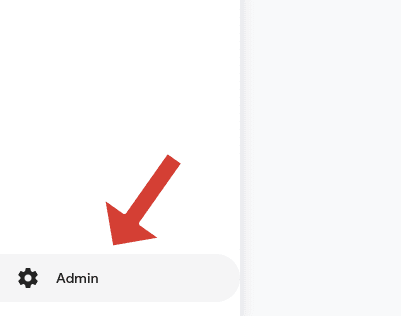
A. Create a new Web Property in the Google Analytics dashboard to receive the tracking information. Click the ADMIN SETTINGS ICON in the bottom left of your Google Analytics dashboard.
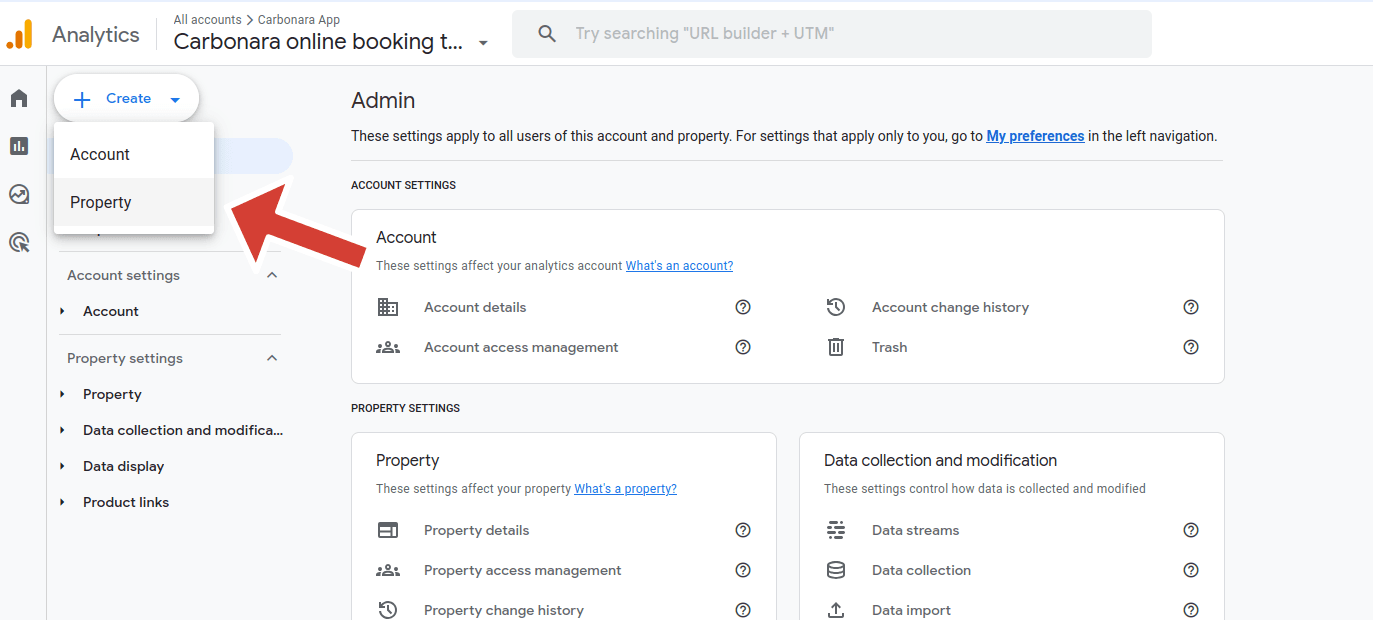
B. Click Create and then click Property
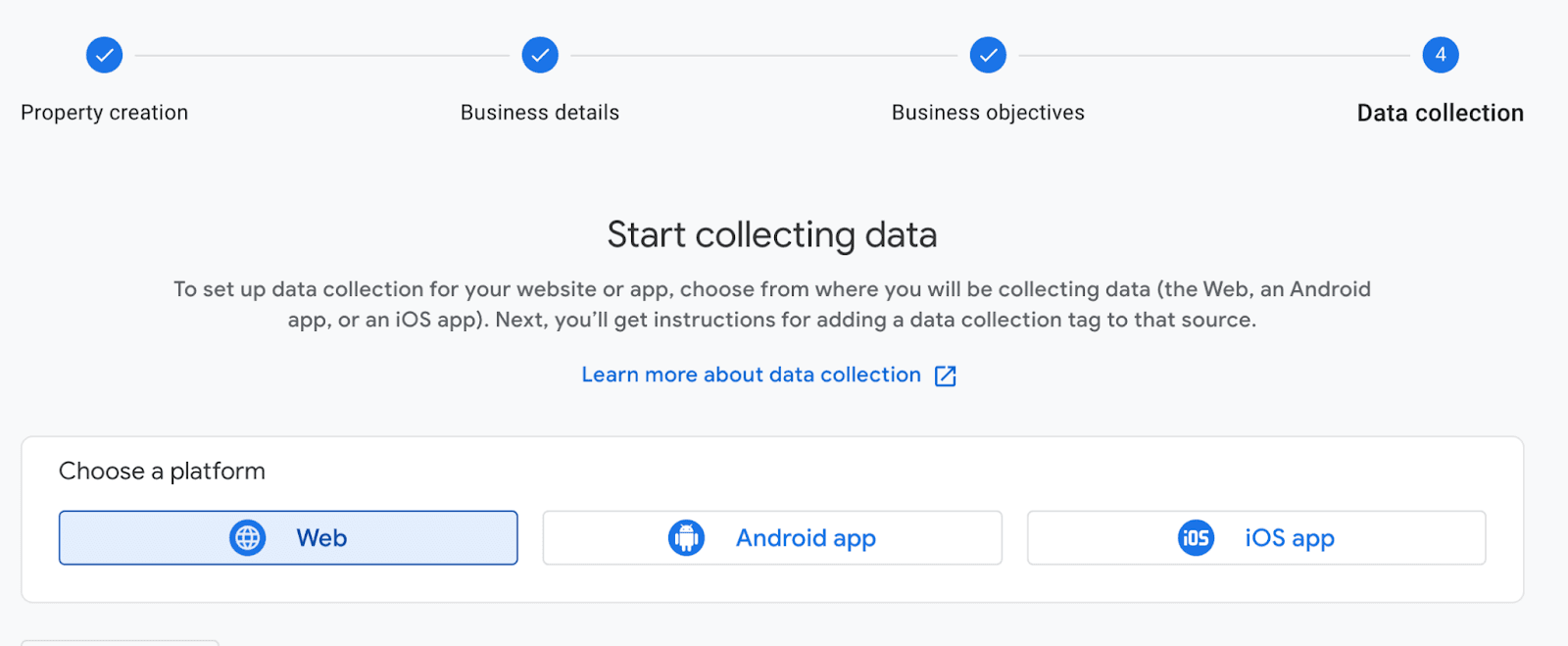
C. Complete the Google survey, and on step 4 DATA COLLECTION, make sure to select WEB
D. For the website address, enter your custom Carbonara booking url.

Step 2 - Add your Measurement ID and API Secret to the Carbonara Manager Portal
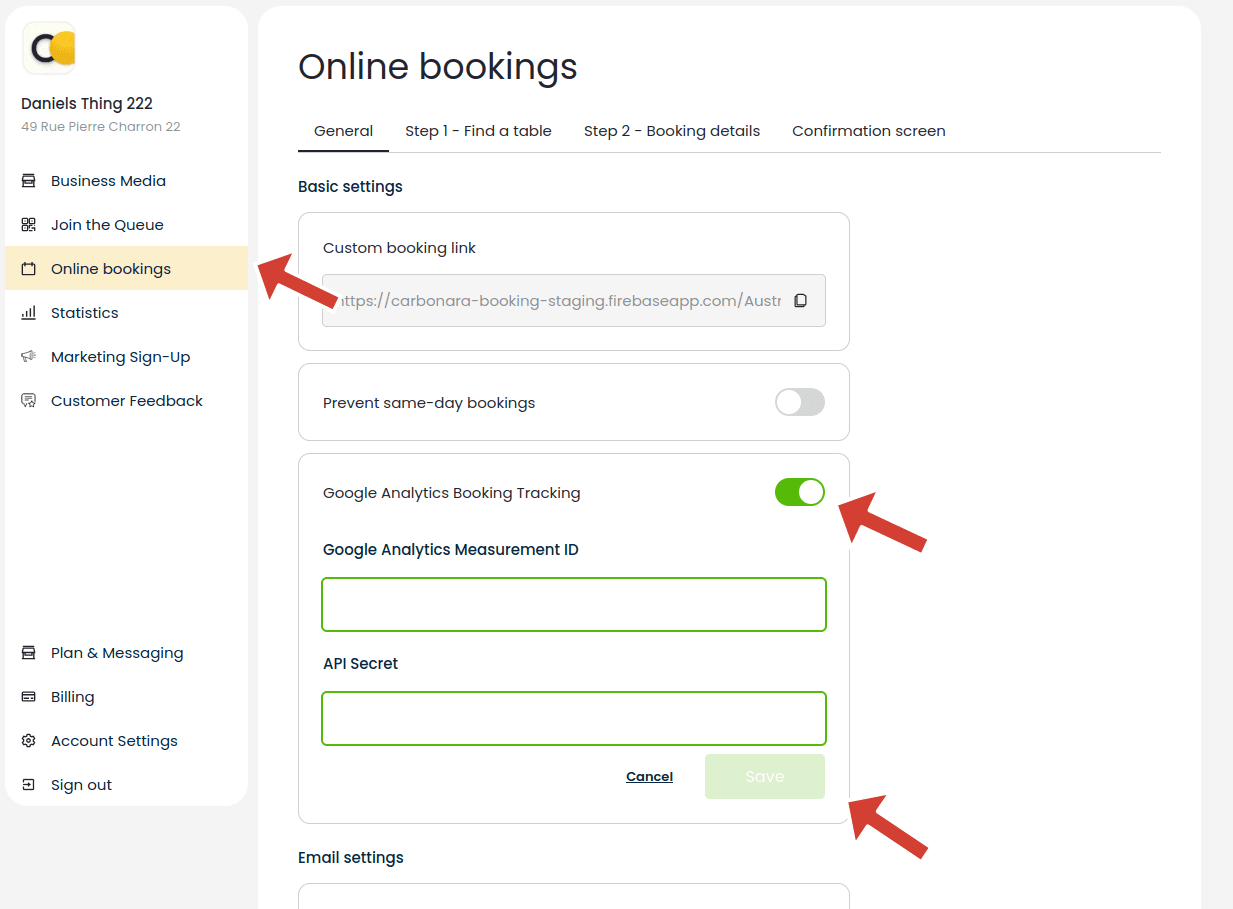
In the Carbonara Manager Portal, enable the “Google Analytics Booking Tracking” switch in manager portal online booking settings. Here you can then save your Measurement ID and API Secret.
Once you have set up your Property, view the Web Stream Details.
NOTE: if you have closed the overlay, click the Property name again to open it.
Copy your Measurement ID into the Carbonara Manager Portal. This is located:
Online Bookings → GENERAL → Basic Settings
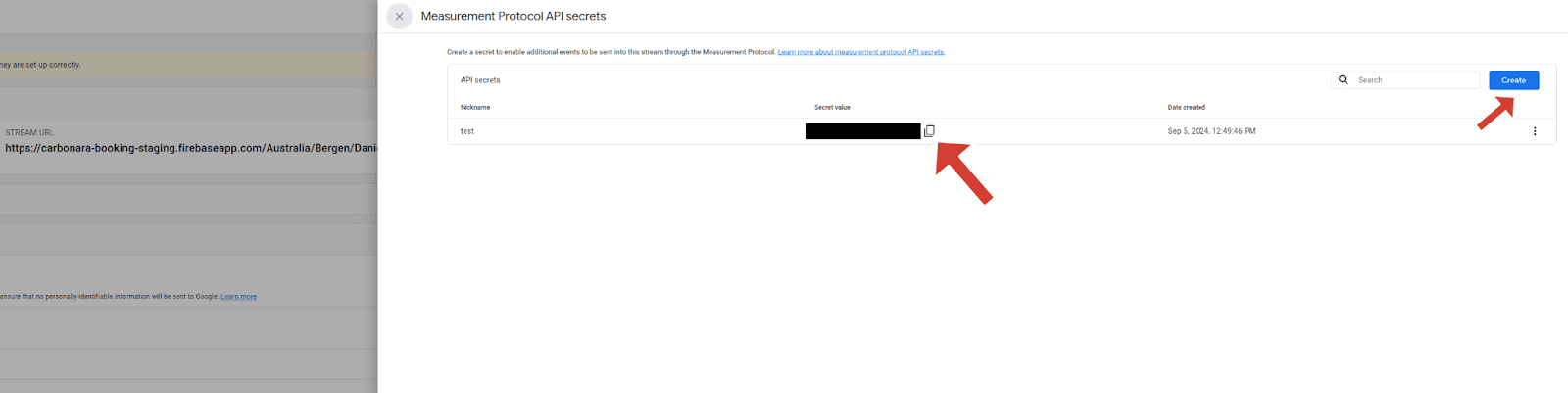
On the same Web Stream Details overlay, go to Measurement Protocol API Secrets
Select Measurement Protocol API Secrets. Click Review Terms and accept them.
Create a key
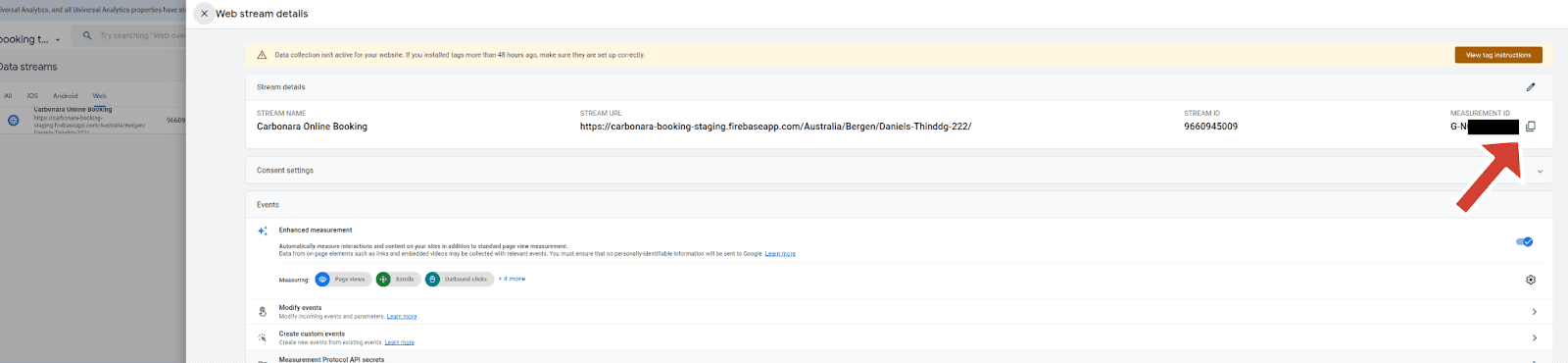
Once finished, you will find your Secret Value.
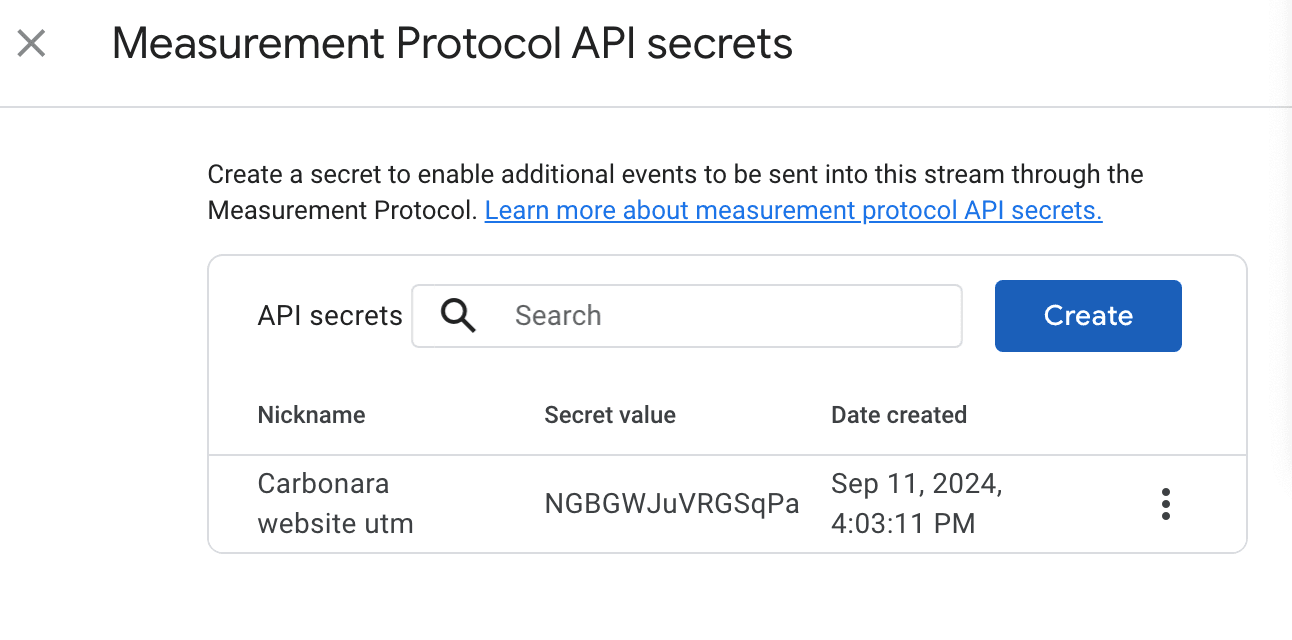
If you need to return to this screen for your API Secret,
Return to the ADMIN Tab on Google Analytics.
Select Data Collection and Modification
Select Data Streams
Step 3 - Set up UTM parameter tracking for your custom booking link
Now you are ready to use UTM parameters to track your bookings via your booking link. You can now add UTM parameters to your booking link and use them anywhere. You can generate this for example with google’s own tool: https://ga-dev-tools.google/ga4/campaign-url-builder/
Viewing your data
There are multiple places to view your booking event data in Google Analytics:
- Realtime data (only most current data available)
- Reports
- Adding custom dimensions
- Explorations
Within Google Analytics:
- Navigate to the settings to set up reports. We’ll show you how to do this.
A. Select the Google Analytics property you have set up to track Carbonara Online Reservations.
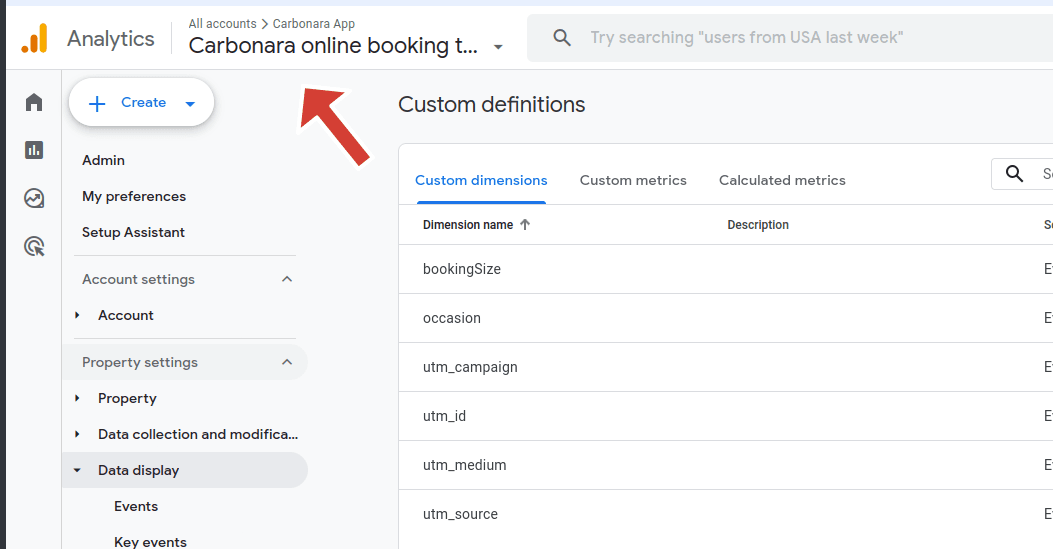
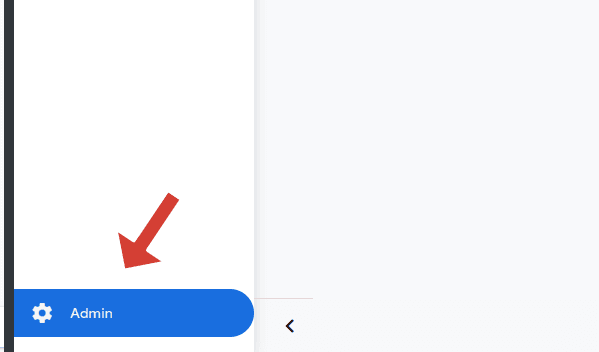
B. Click on the admin settings icon in the bottom left corner
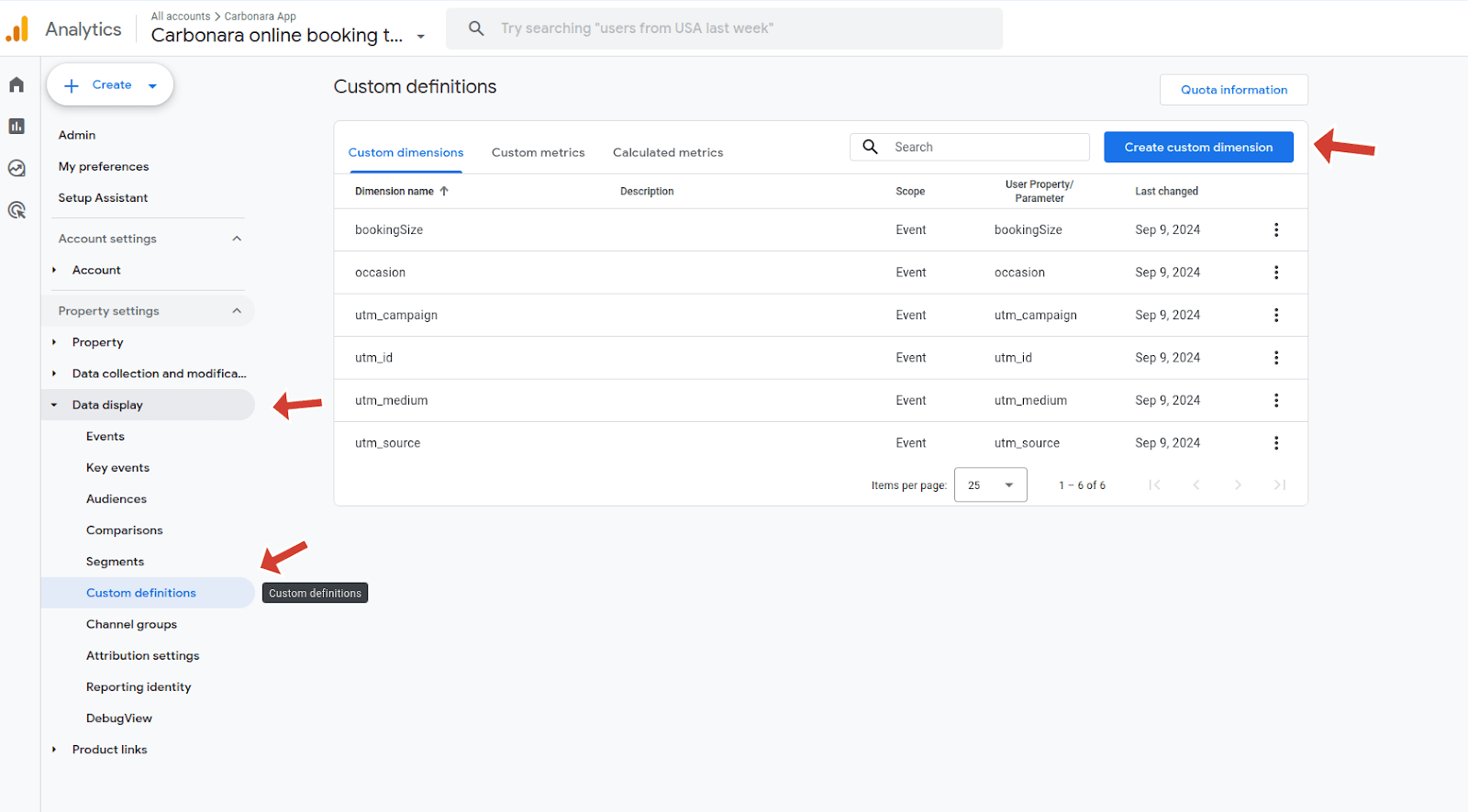
C. In the sidebar select Data Display and then Custom Definitions
- Identify tracked links and create the reports
A. Click the “Create custom definition” button to create an Event.
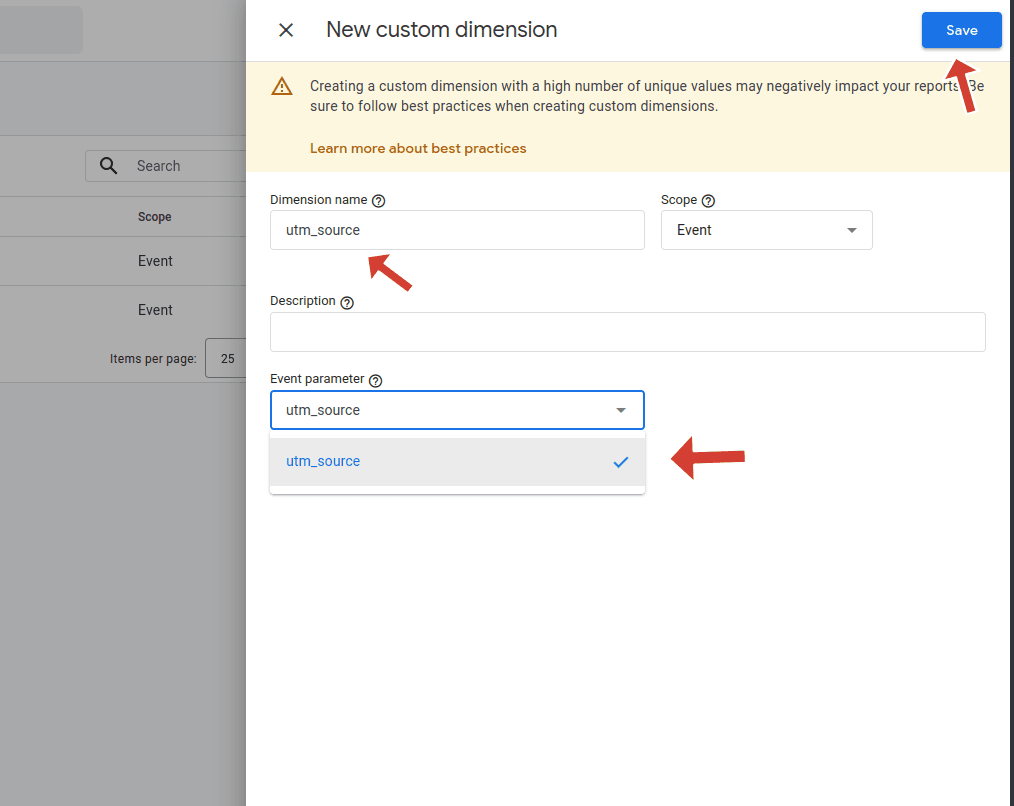
B. In Dimension Name, write the name of your link you’re tracking, for example “Facebook Campaign”
Then select a UTM parameter in the event parameter dropdown and click save (e.g. UTM_Campaign, UTM_Source, UTM_Medium, etc.).
Do this for each of your UTM parameters in your link.
- View your reports
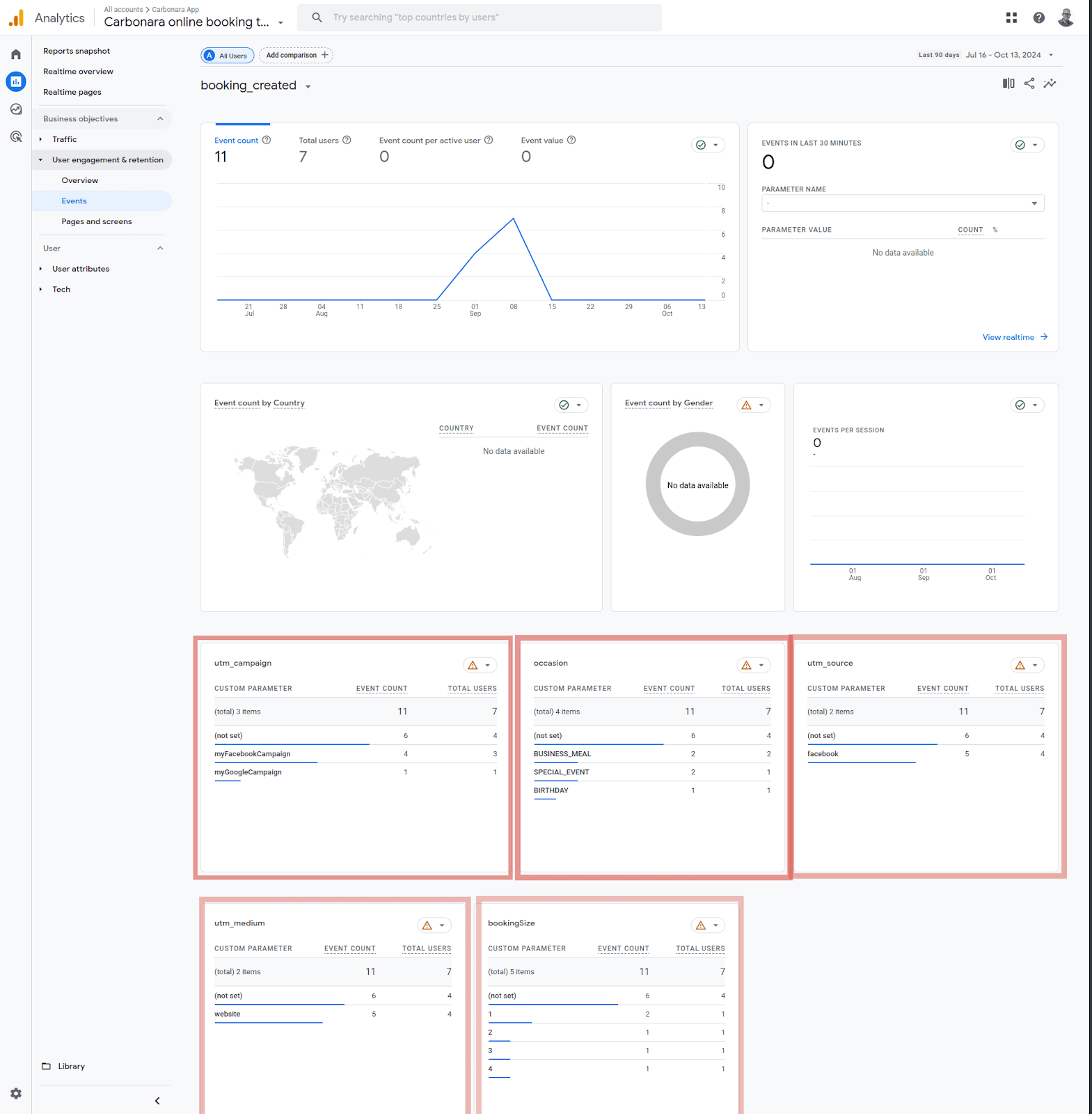
Once you have added all of your UTM parameters as custom definitions, you can view statistics about your bookings under:
Reports > User engagement & retention > Events.
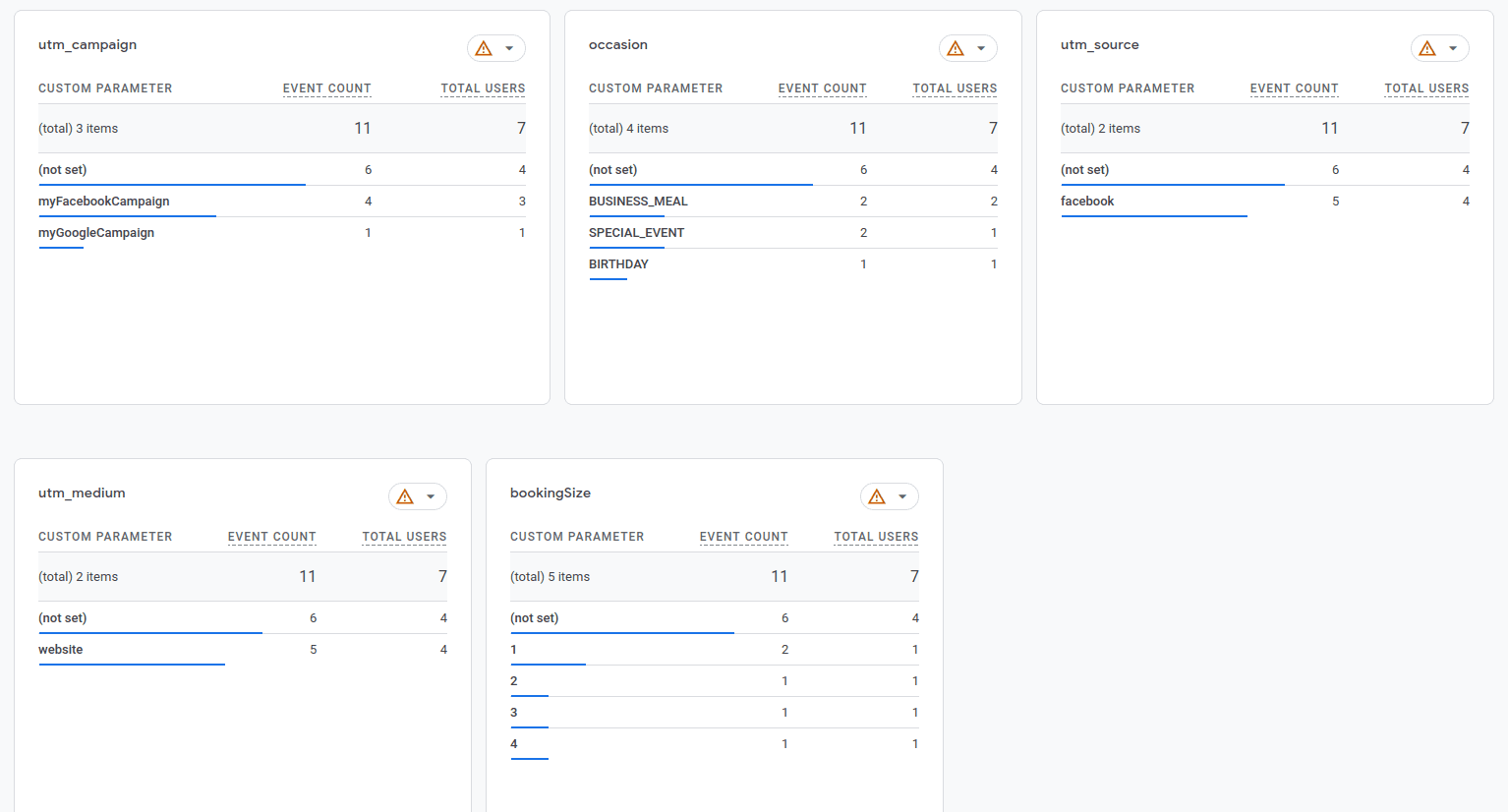
You should see one panel / box per UTM parameter, and the booking count for each event. For example, you can see how many of your online bookings originate from a given advert campaign.